
To get your project ready for submission, we need to export the production files (gerbers, etc.). These files tell JLCPCB or whatever board manufacturer how to make the board and which components to place.
#Install the JLCPCB plugin
-
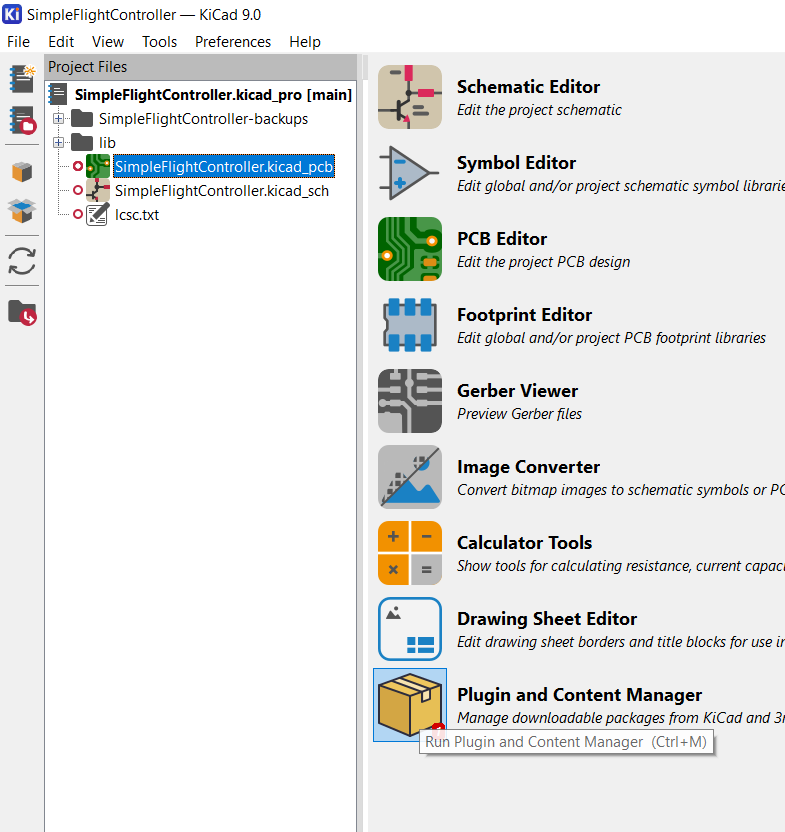
Thankfully, there's a plugin that KiCad has to make this export easy. Go to the
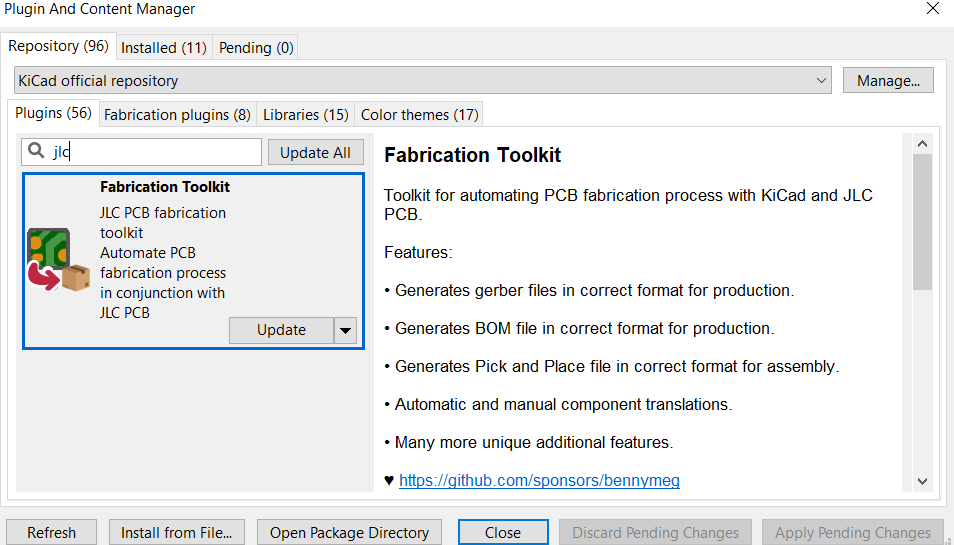
Plugin and Content Managerin KiCad and search forjlc. -
You should see this plugin show up:
-
Press the install button and then
Apply Pending Changesto install it. Finally, go back to your PCB screen and you should see this icon: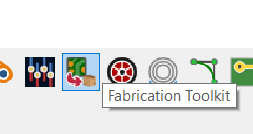
#Generate the production files
-
A window should open and click
Generate: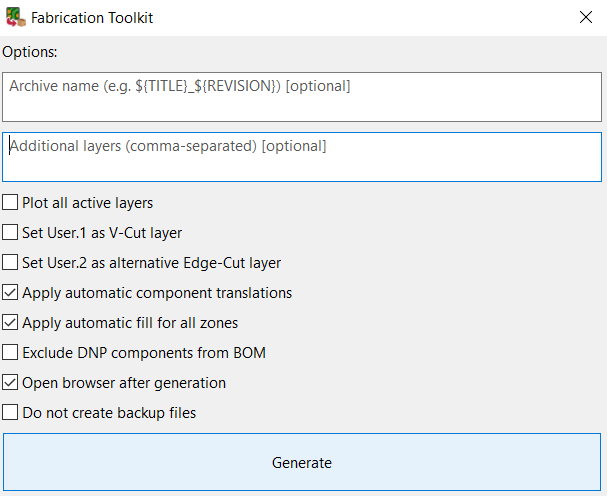
-
It should create this directory in the
hardwarefolder: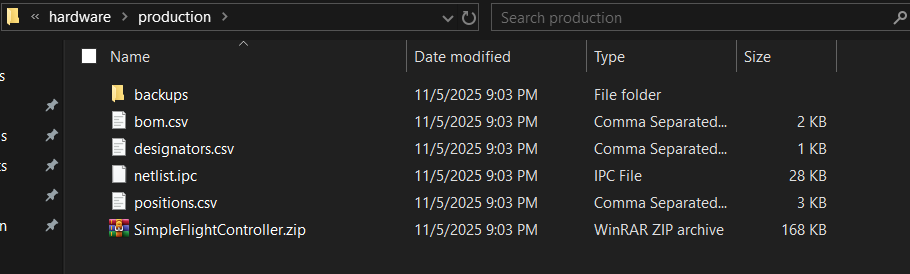
-
But I'm going to copy it out of that folder and move it to the root so that reviewing is much easier.
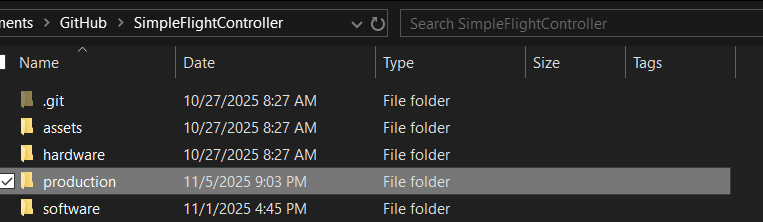
#Ordering from JLCPCB
#Upload gerbers
-
Now open JLCPCB and upload the gerbers (ZIP file that has the name of the KiCad project) in the
productionfolder to see how much it costs.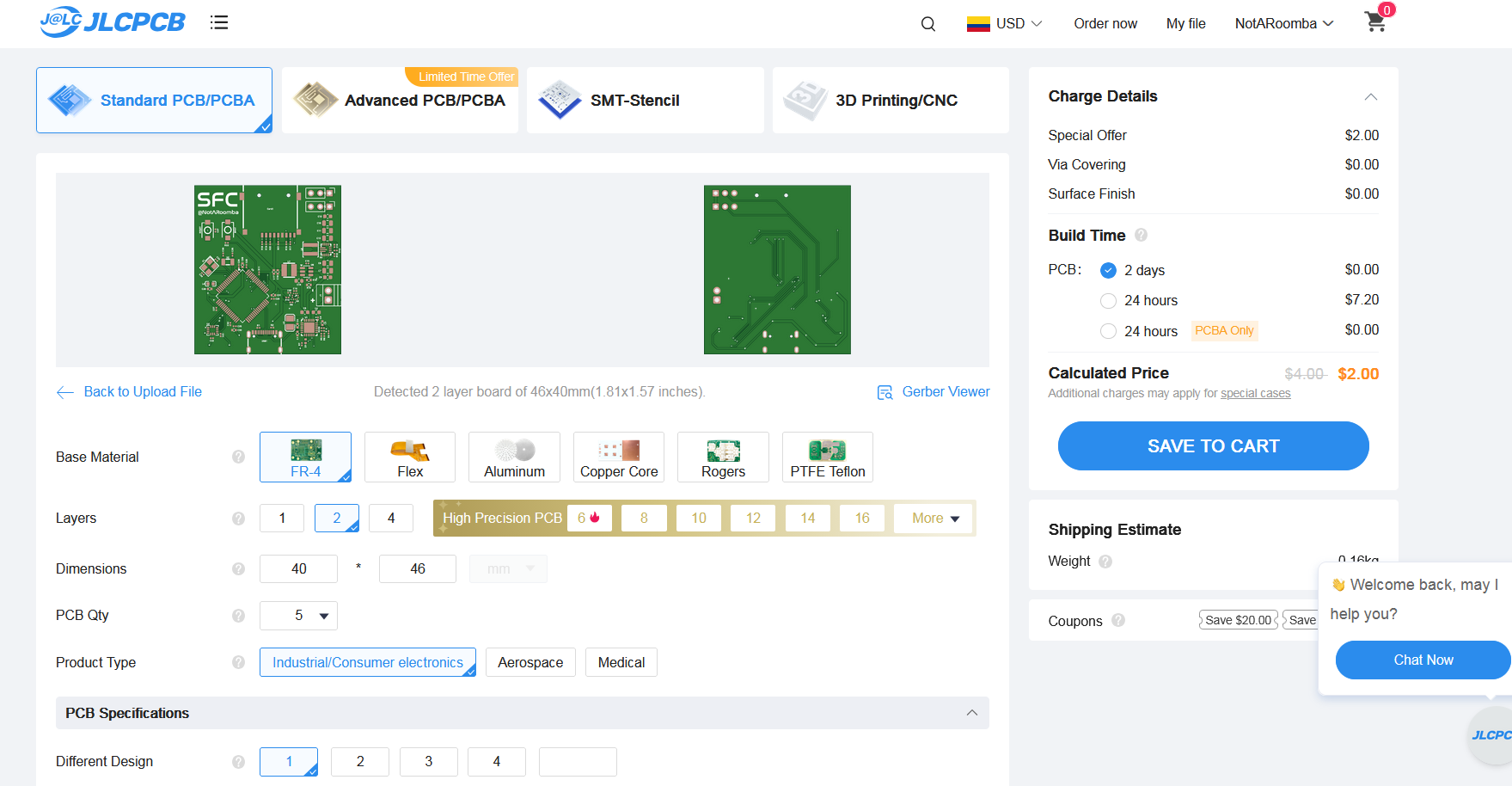
#Enable PCBA (order 2)
-
Select
PCBAand make sure that it is only one side and that you order 2 and not 5 boards assembled to minimize cost: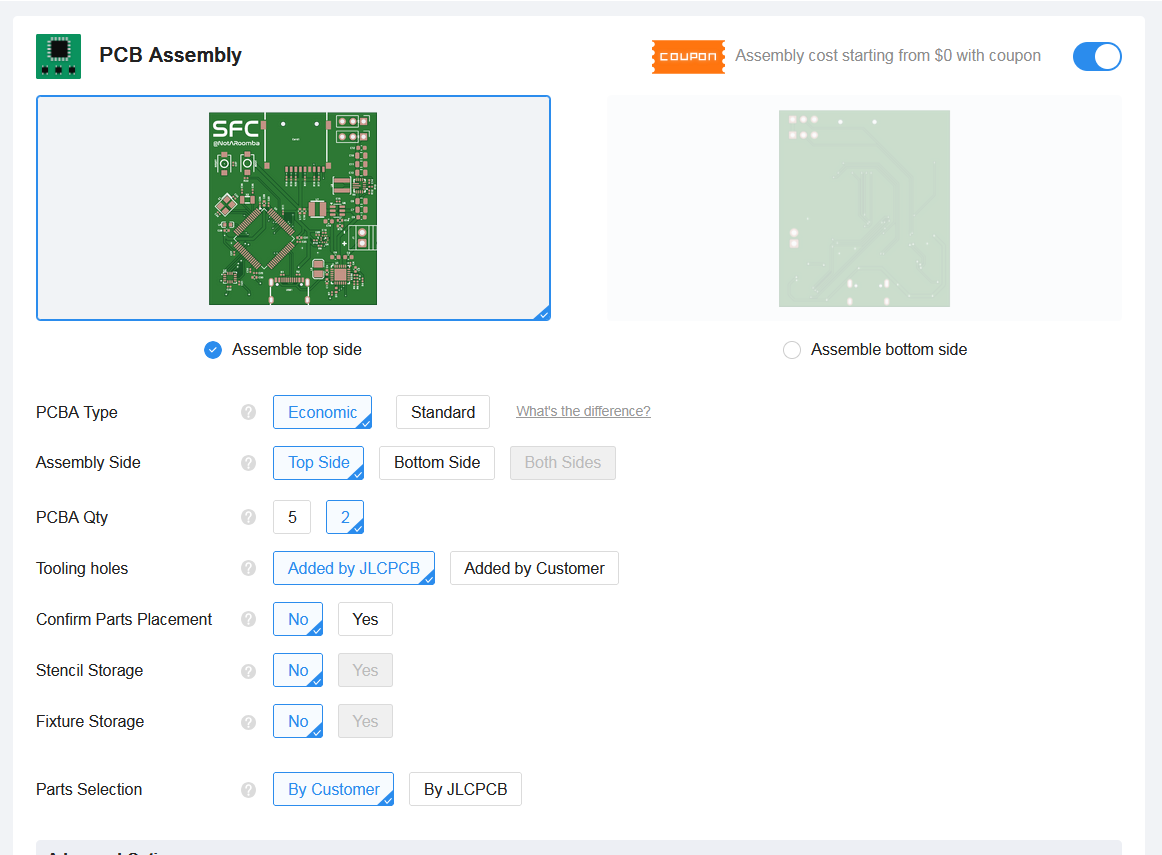
#Upload BOM and CPL
-
Continue and upload the
BOM and CPL(BOM = bom.csv, basically the components and their ID; CPL = positions.csv, where exactly the components are placed):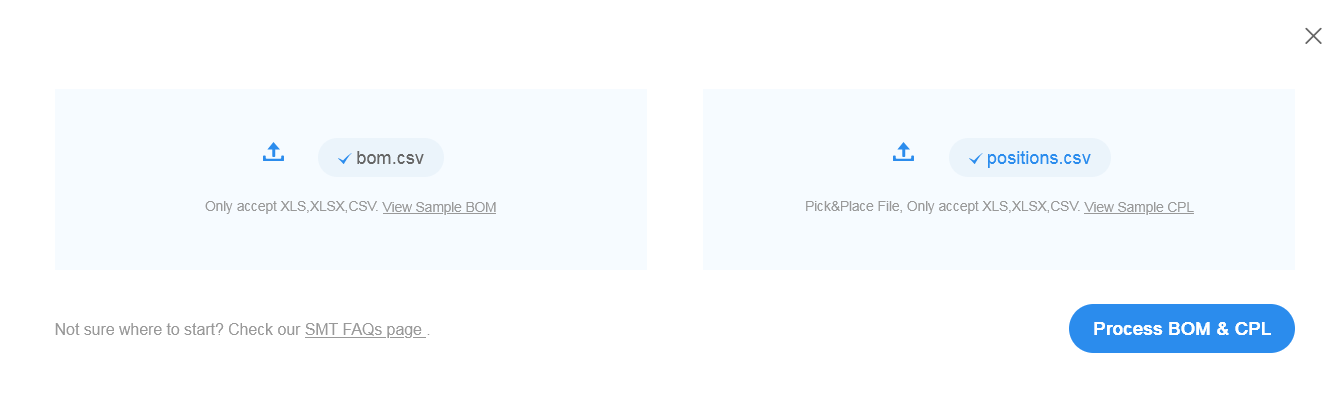
-
Depending on the sensors you use, you may have to use standard PCBA:

-
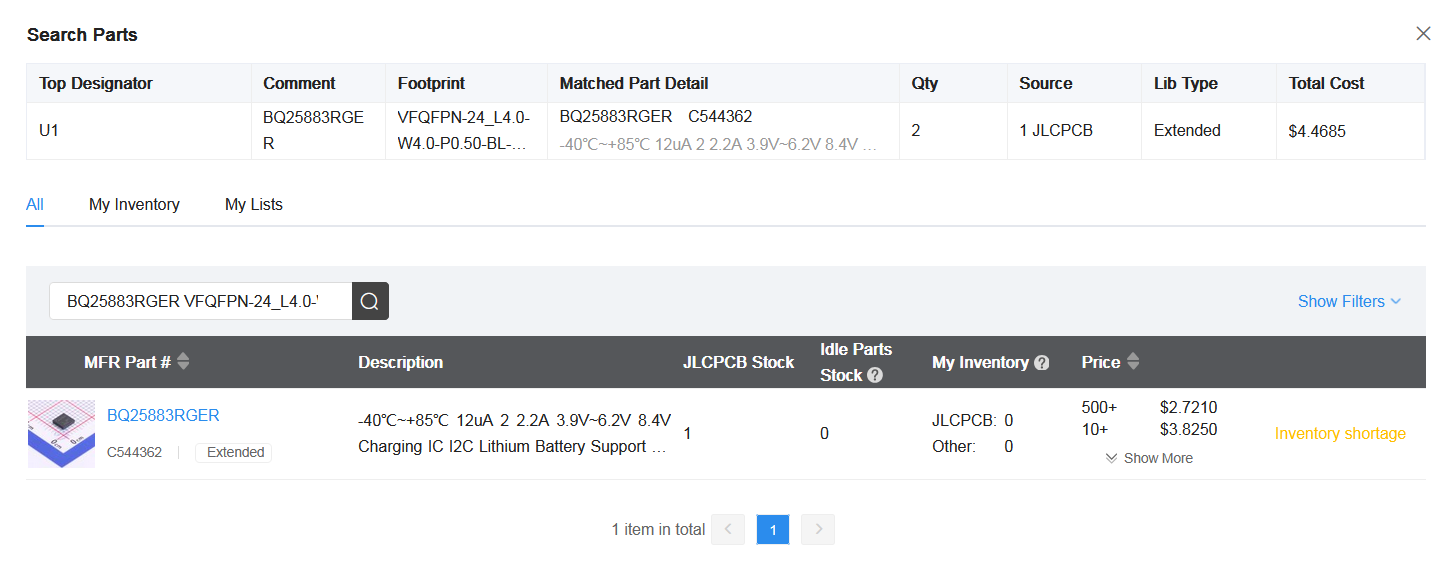
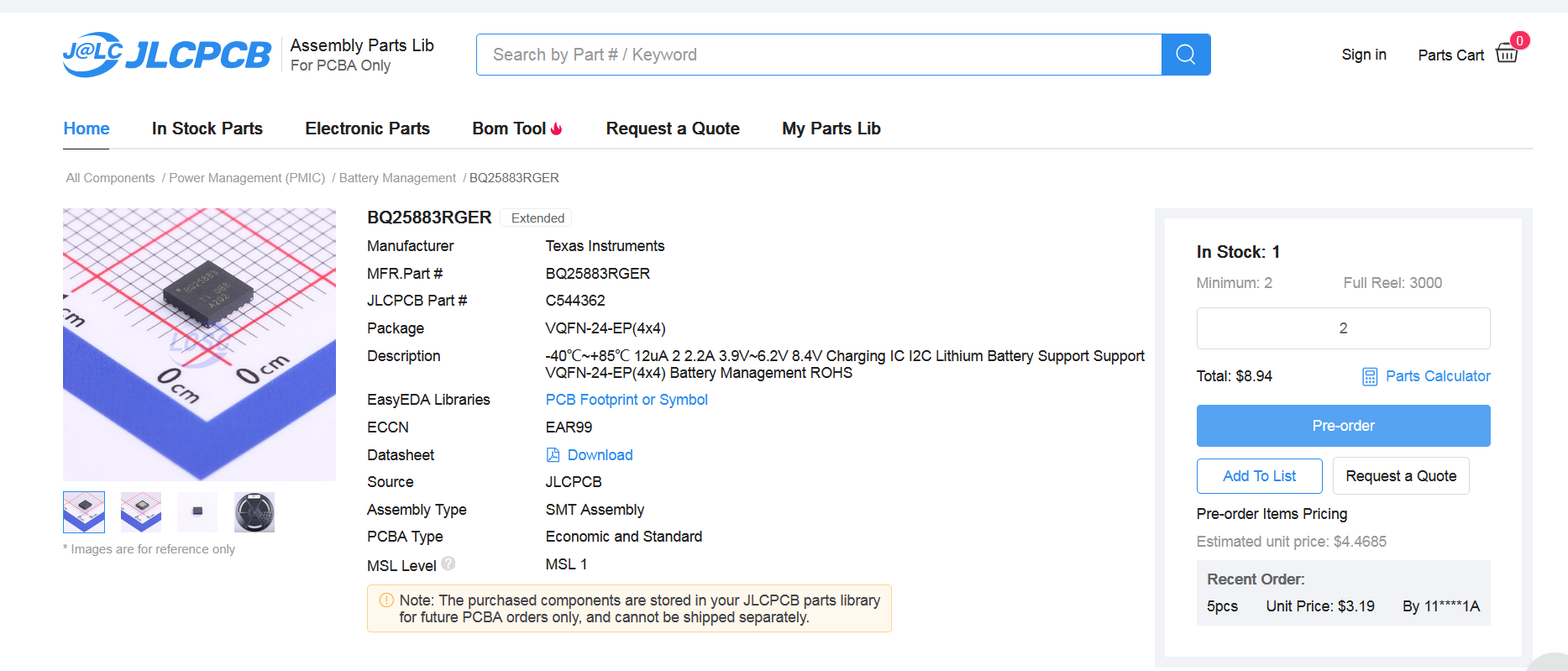
If there are any components that have shortfall, then you need to order them separately and add them to your library before ordering:
#Confirm the cost
-
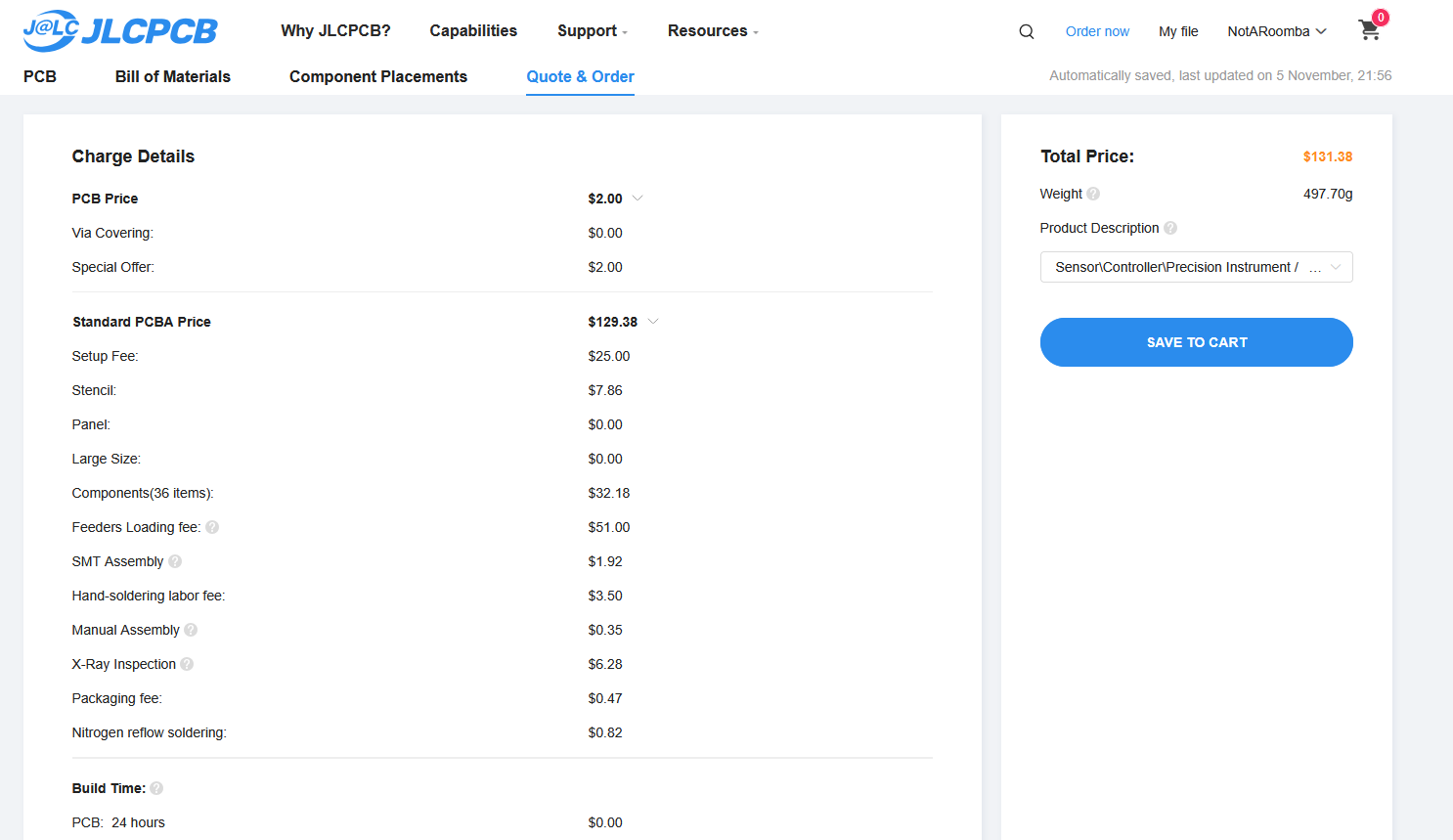
Continue without placing the parts for now to get the general cost of the board:
CONGRATS! YOU'VE MADE YOUR FIRST FLIGHT CONTROLLER!
Feel free to modify this board to include more sensors, servos, peripherals, microSD cards (lmao), literally anything you can put your mind to.