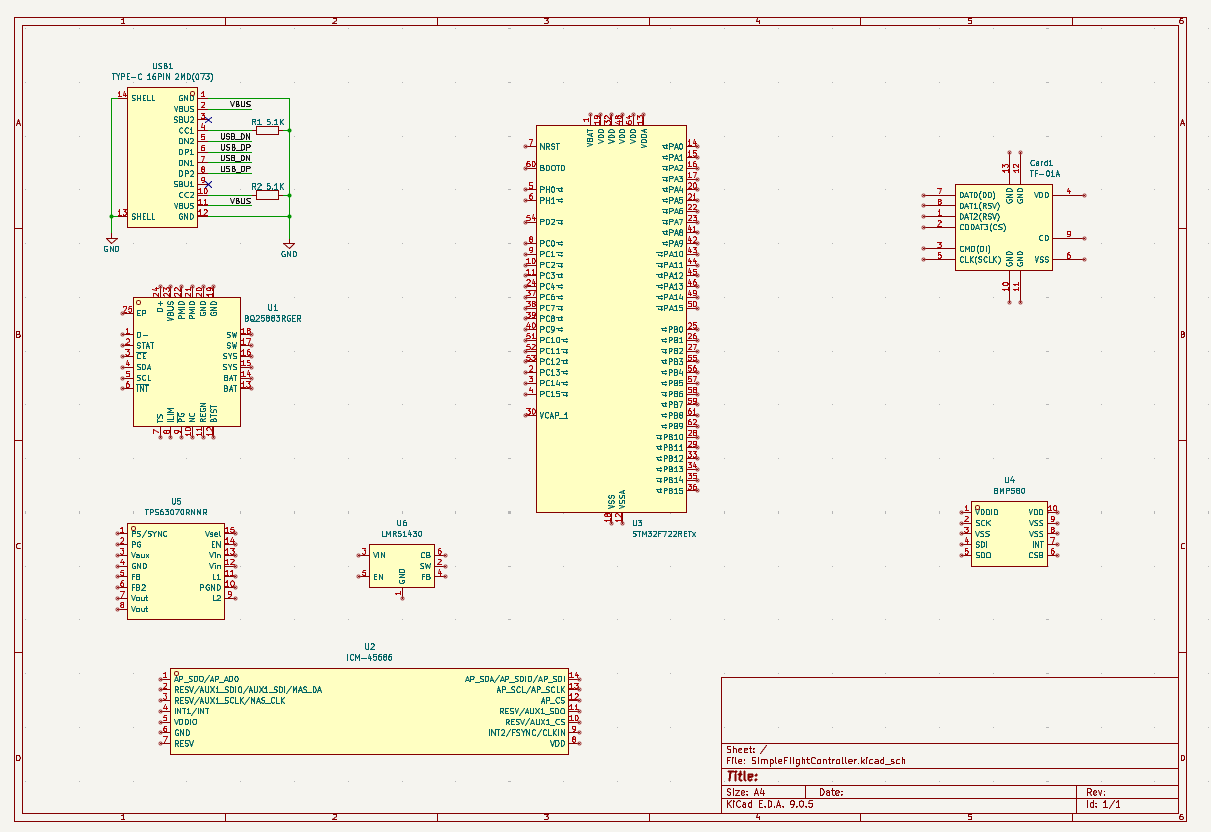
Now that we have the components that we are going to use, let's start importing them into our project.
Although KiCad has a large selection of components, it is still a bit
outdated and there are tons of chips that we would have to import in order
to use them. Thankfully, there is a library called
easyeda2kicad.py that can
import these components from LCSC for us.
I have made a simple helper script to import all of the LCSC IDs from a text file, so all you have to do is append the part numbers and run the script again.
#Create the lib folder and lcsc.txt
- Start by creating a folder called
libin the/hardwaredirectory. - Then in the
/hardwaredirectory, create a new file calledlcsc.txtand leave it empty for now.
#Add the importer script
-
Create a file called
lcsc.py(or whatever name you want) and paste this code in there:import argparse import os import shutil import subprocess import sys def run_easyeda2kicad_from_file(input_file, output_dir="./lib/lcsc", python_exec="python"): input_file = os.path.expanduser(input_file) output_dir = os.path.expanduser(output_dir) python_exec = python_exec or "python" if not os.path.isfile(input_file): print(f"Error: File not found: {input_file}") return 2 # If a simple name was provided, check PATH; if an absolute path, check that file exists. found = shutil.which(python_exec) if os.path.basename(python_exec) == python_exec else os.path.exists(python_exec) if not found: print(f"Warning: Python executable '{python_exec}' not found in PATH or as given path. Trying anyway.") os.makedirs(output_dir, exist_ok=True) with open(input_file, "r", encoding="utf-8") as f: # ignore blank lines and comments lines = [line.strip() for line in f if line.strip() and not line.lstrip().startswith("#")] if not lines: print("No LCSC IDs found in input file.") return 0 for idx, lcsc_id in enumerate(lines, start=1): cmd = [ python_exec, "-m", "easyeda2kicad", "--full", f"--lcsc_id={lcsc_id}", f"--output={output_dir}", ] print(f"[{idx}/{len(lines)}] Running: {' '.join(cmd)}") try: subprocess.run(cmd, check=True) except subprocess.CalledProcessError as e: print(f"❌ Error processing {lcsc_id}: {e}") except FileNotFoundError as e: print(f"❌ Executable not found: {e}") return 3 print("✅ All commands completed.") return 0 def main(argv=None): parser = argparse.ArgumentParser(description="Run easyeda2kicad for a list of LCSC IDs.") parser.add_argument("input_file", nargs="?", default="./hardware/lcsc.txt", help="Path to file with one LCSC ID per line") parser.add_argument("output_dir", nargs="?", default="./lib/lcsc", help="Output directory") parser.add_argument("--python", dest="python_exec", default="python", help="Python executable to use (default: 'python')") args = parser.parse_args(argv) return_code = run_easyeda2kicad_from_file(args.input_file, args.output_dir, args.python_exec) sys.exit(return_code if isinstance(return_code, int) else 0) if __name__ == "__main__": main() -
This code basically calls the
easyeda2kicad.pylibrary for every line that is present inlcsc.txtand adds it to a KiCad library in/hardware/lib/lcsc. (Make sure to install it first usingpip install easyeda2kicad.py)
#Finding parts on LCSC
Now after creating both of those files, in your favorite IDE, edit
lcsc.txt with the part numbers of the chips that you are going to use.
#Search LCSC for a USB-C part
-
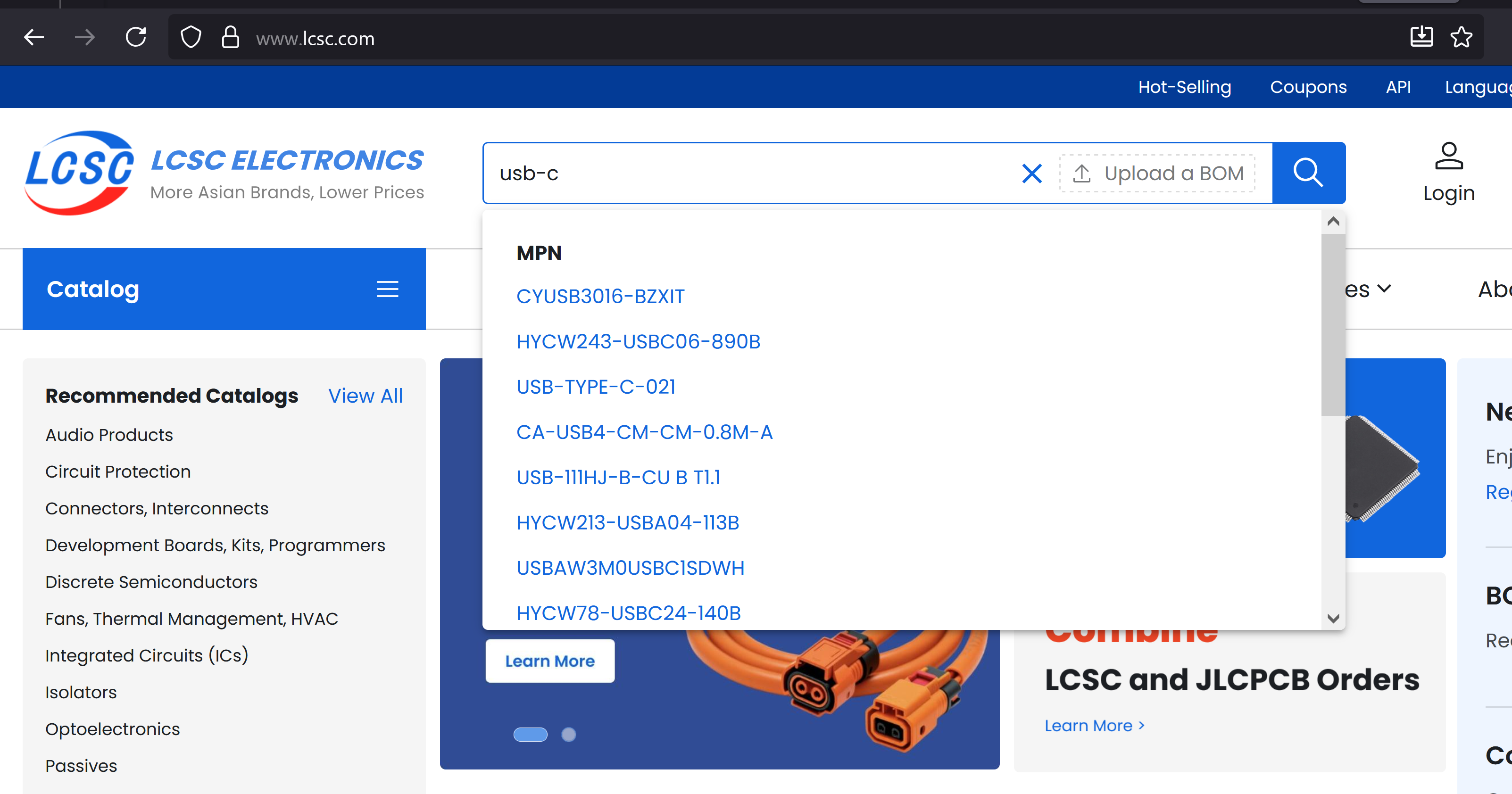
For example, let's say I want to add a USB-C port from LCSC. Go to www.lcsc.com and search for USB-C.
-
After searching, I found a good part with large stock (important!), so I then copy the part number (always starts with C followed by numbers, and it's under the name) into
lcsc.txt.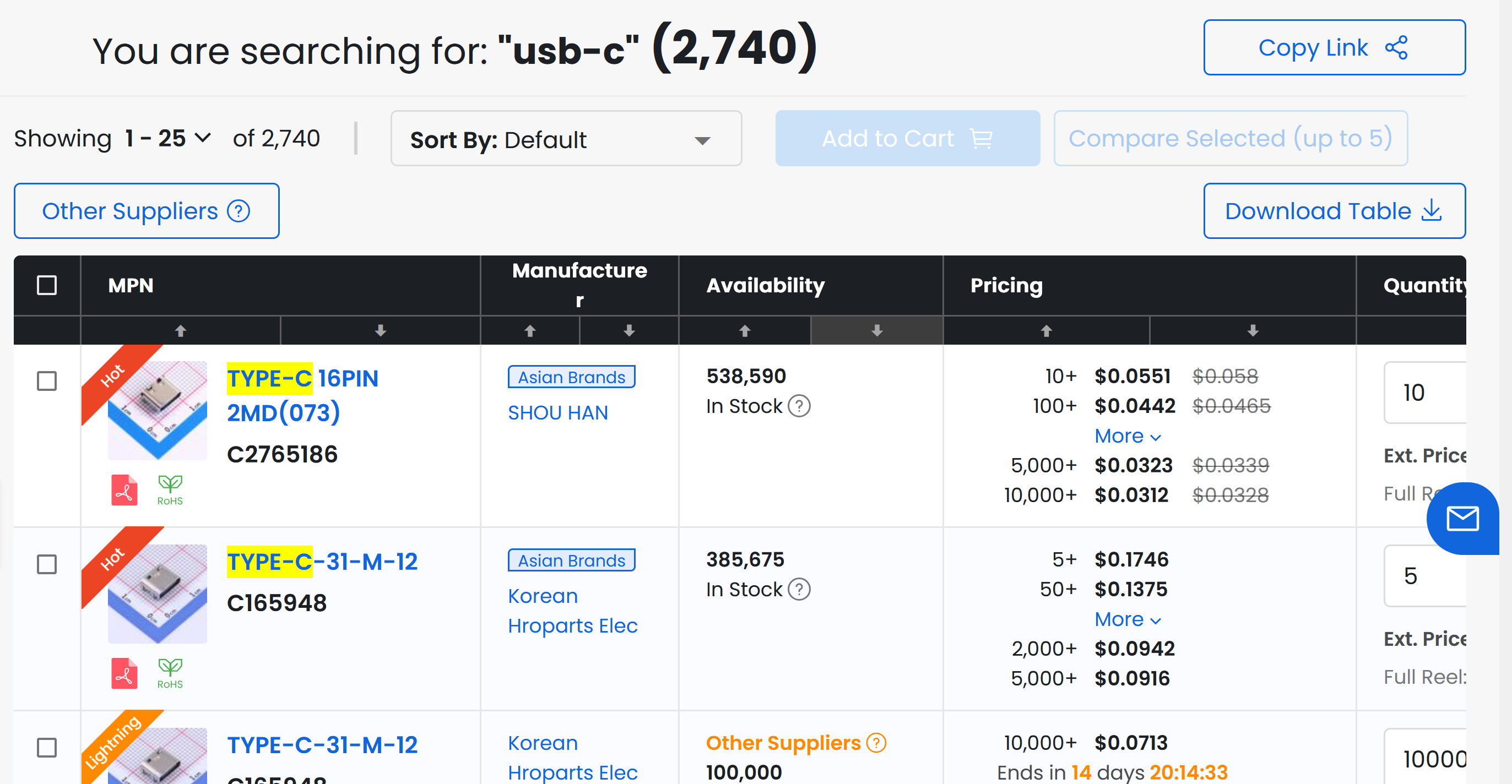
-
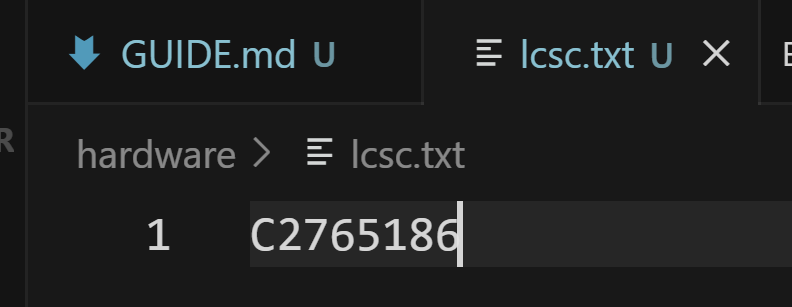
It should look like this:
#Wiring the library into KiCad
#Register the library and its footprints
-
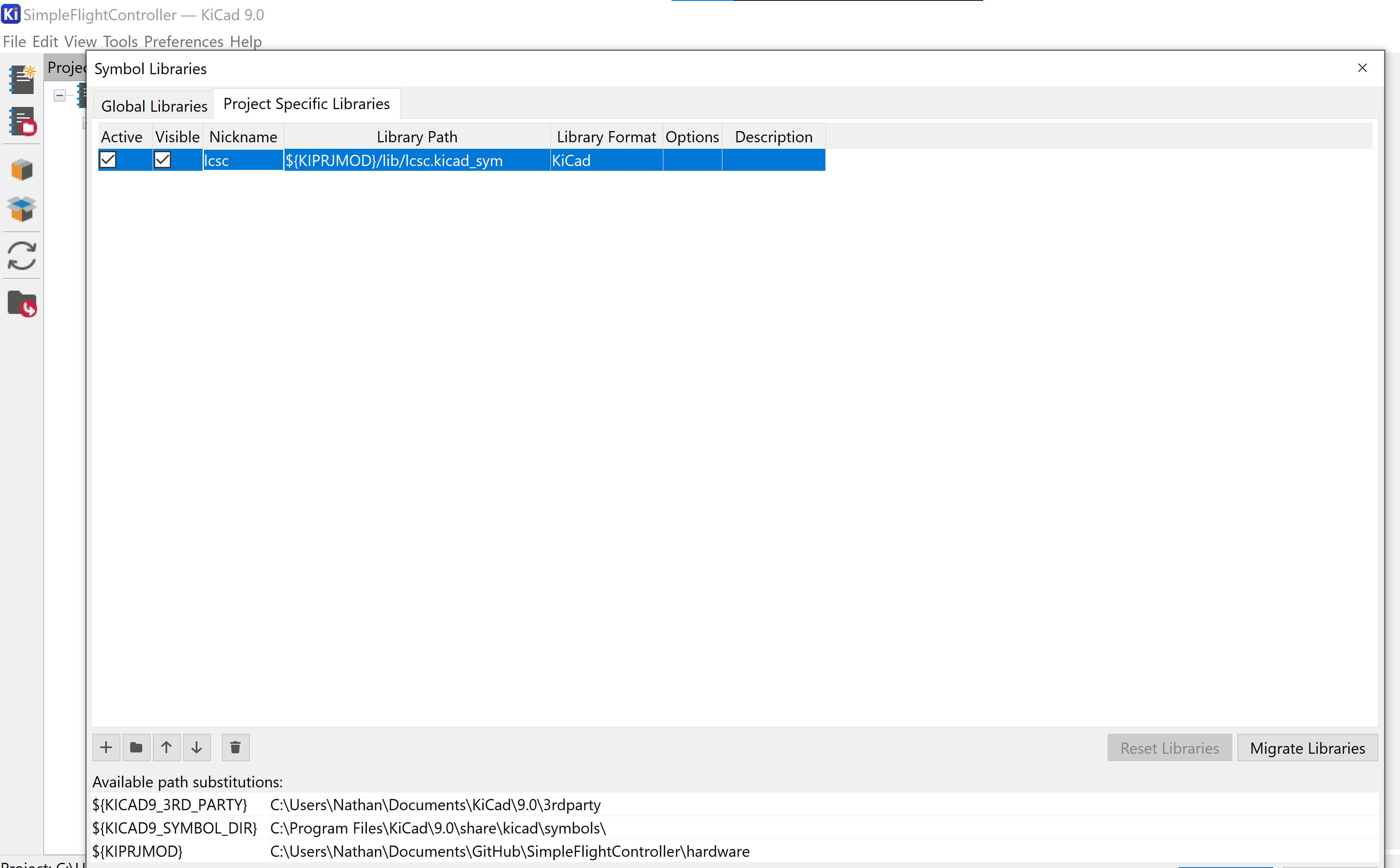
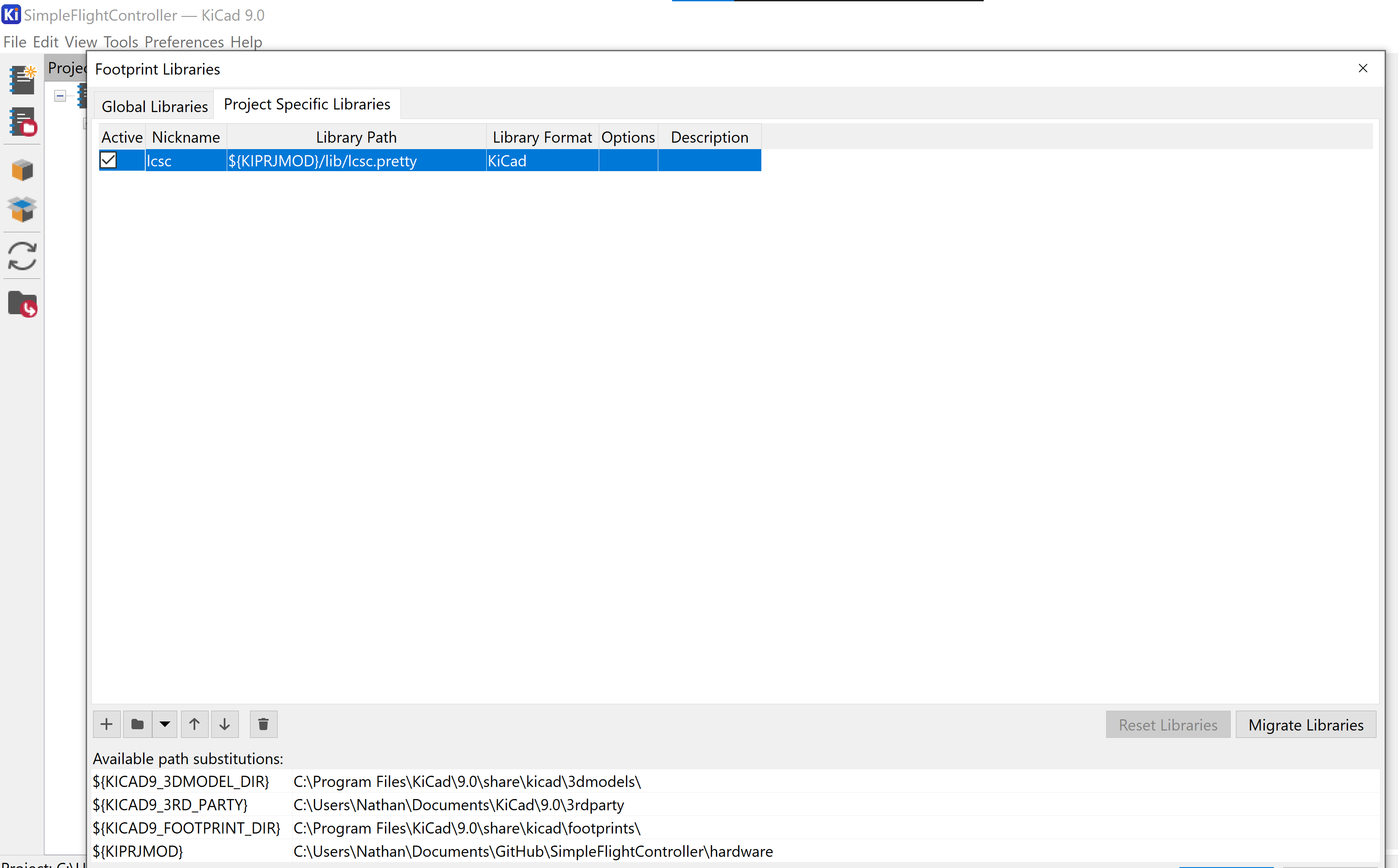
After running the script for the first time, add the library to your KiCad project and also the footprint library (the folder that ends with .pretty). It should look like this when you are done.
-
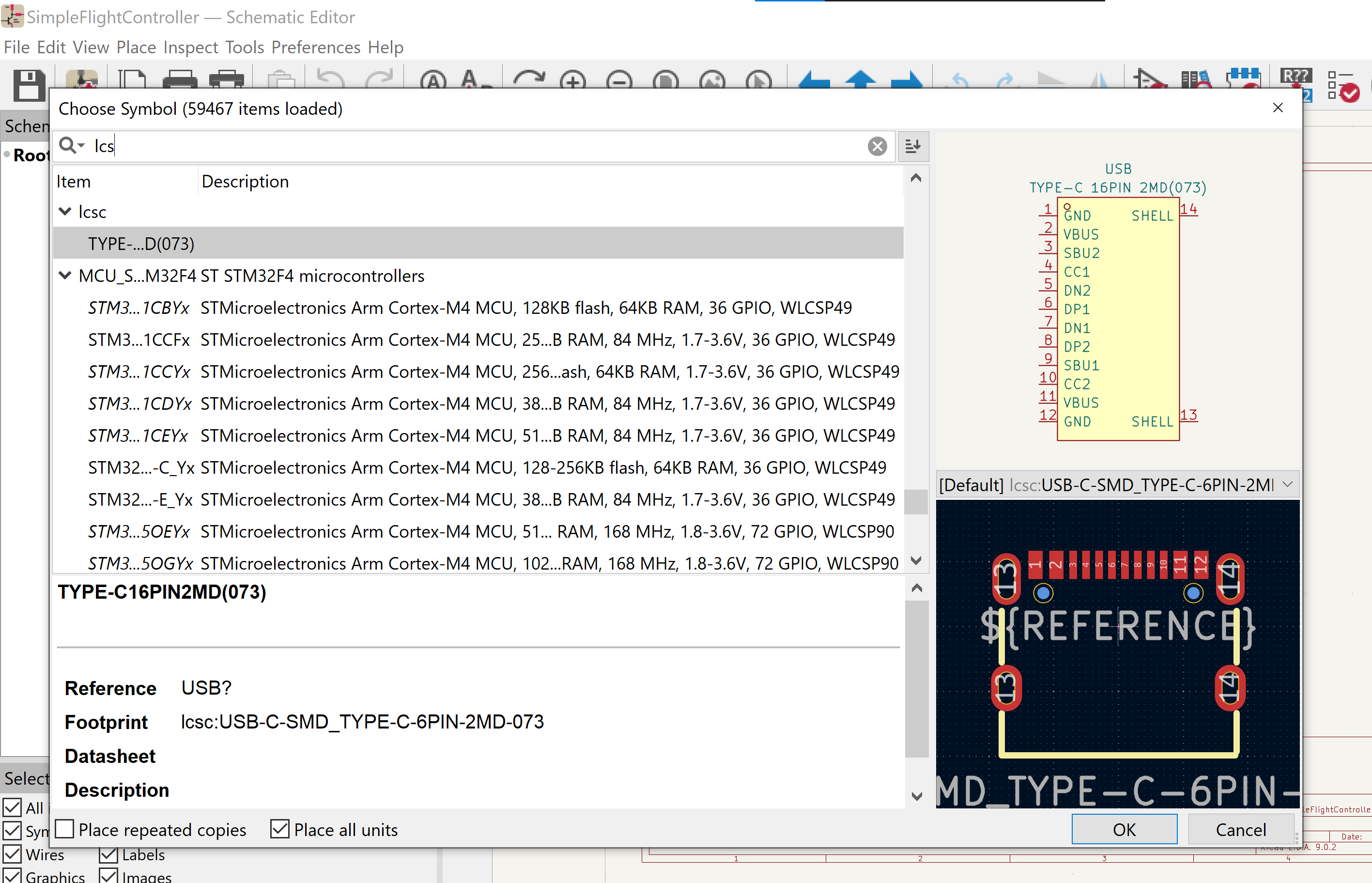
Then after that's done, go into your schematic and search for "lcsc". You should find the library with the USB-C connector (or whatever other part you imported).
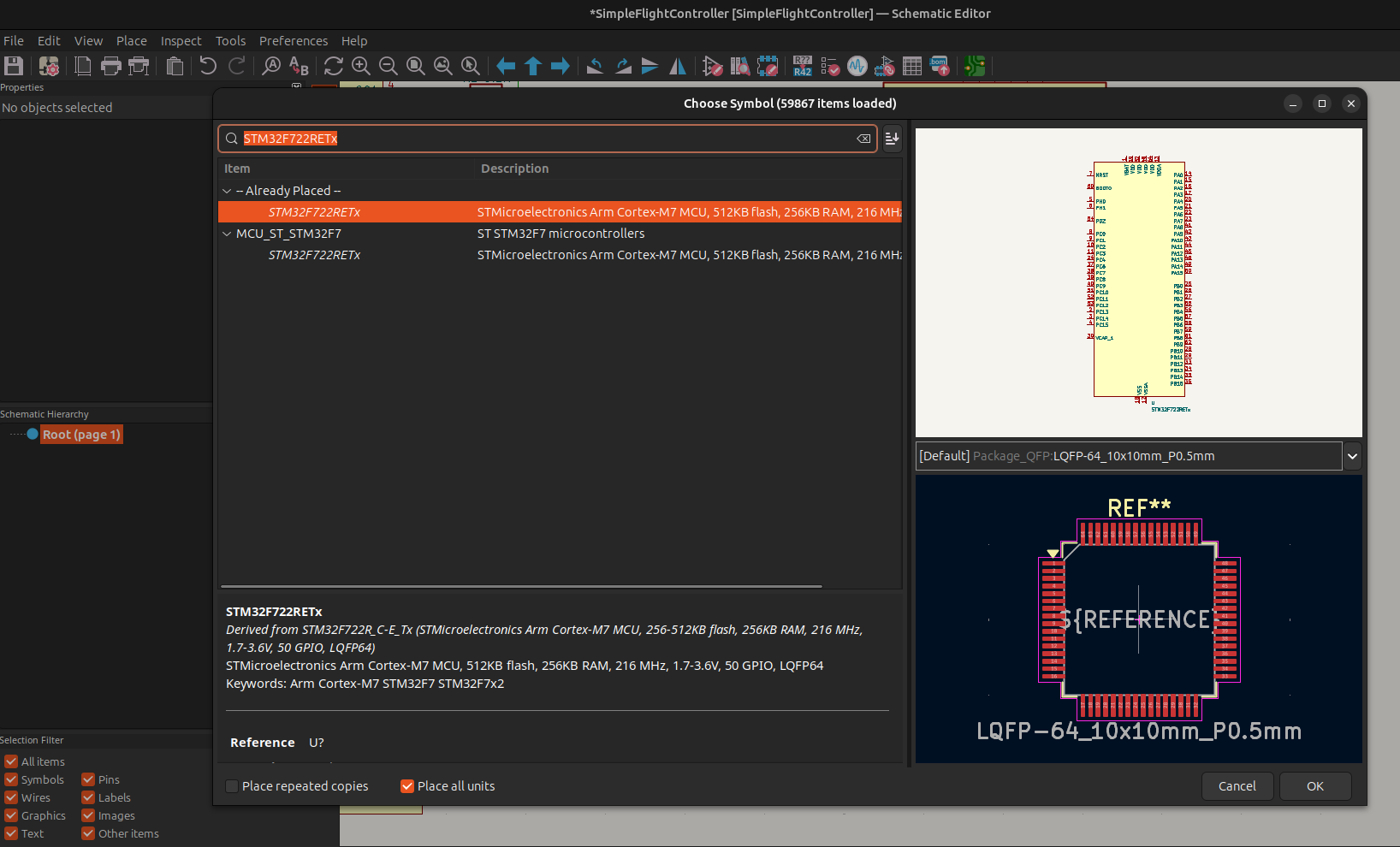
Keep in mind that there are some parts that KiCad already has, such as
STM32F722RETx, but there are others like the IMU that you will have to
import.
#Add every remaining part to lcsc.txt
-
After finding the components on LCSC, my
lcsc.txtlooks like this: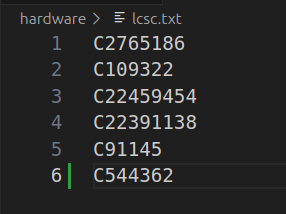
-
Now run the script again. Once it's done, go back to KiCad and add in all of the components (you may have to reopen the choose parts screen for the LCSC library to update).